Think about the last time you forgot a password. What did you do? You clicked "Forgot Password," and the service sent a reset link to your email inbox.
Now, imagine a hacker has access to that inbox. They don't need to guess your banking password or break through your social media security. They simply click "Forgot Password" on your bank's website, intercept the reset link in your email, and change the password. Within minutes, they own your account.
This is why your email is the crown jewel of your digital identity. It is the central hub that controls your banking, your shopping, your social media, and even your work portals. Despite this, most people treat their email password with the same casualness as their Netflix login.
If your email gets compromised, the fallout is catastrophic. Here is your step-by-step guide to securing it before it becomes the key to every other account you own.
The Anatomy of an Email Takeover
Before we secure your account, it helps to understand how hackers operate once they get inside your inbox. They rarely announce their presence by sending an email to all your contacts.
Instead, they operate silently. They might:
Set up a forwarding rule so that every email you receive is secretly copied to their own address.
Change your recovery phone number or backup email so you can't reset your own password.
Use your email to send password reset requests to your other accounts (like your bank or Amazon).
Send phishing emails to your contacts, pretending to be you, to steal their information too.
To stop this, you need to think like a hacker and check the hidden settings they use.
Step 1: Set Up Multi-Factor Authentication (MFA)
If you only do one thing, do this. Multi-Factor Authentication (MFA) requires two pieces of evidence to log in: your password and a second code.
Avoid SMS if possible: While text message codes are better than nothing, they can be intercepted through SIM-swapping attacks.
Use an Authenticator App: Apps like Google Authenticator or Microsoft Authenticator generate a new code every 30 seconds. This is much safer.
Hardware Keys: For the highest level of security (like for a business executive or journalist), use a physical USB security key (like a YubiKey).
Step 2: Audit Your Forwarding Rules and Auto-Reply
This is the most overlooked security check. If a hacker gets into your inbox, they will often set up rules to hide their tracks.
For example, they might set a rule that says: "If an email comes from my bank containing the word 'security alert,' move it to the Trash folder and forward it to [hacker's email]." You would never see the bank's alerts warning you that someone is trying to access your account.
How to check (Gmail):
Go to Settings > See all settings > Forwarding and POP/IMAP. Check if any unauthorized forwarding addresses are listed. Also check the "Filters and Blocked Addresses" tab for any rules you didn't create.
How to check (Outlook):
Go to Settings > Mail > Rules. Look for any suspicious rules that delete or forward emails.
Step 3: Review Your Recovery Information
If you forget your password, how does your email provider verify it is really you? They use your backup email and your recovery phone number.
Hackers will change these settings so that they are the only ones who can recover the account.
Go into your account security settings and verify that your recovery phone number and backup email address are correct. If you see a phone number you don't recognize, remove it immediately and change your password.
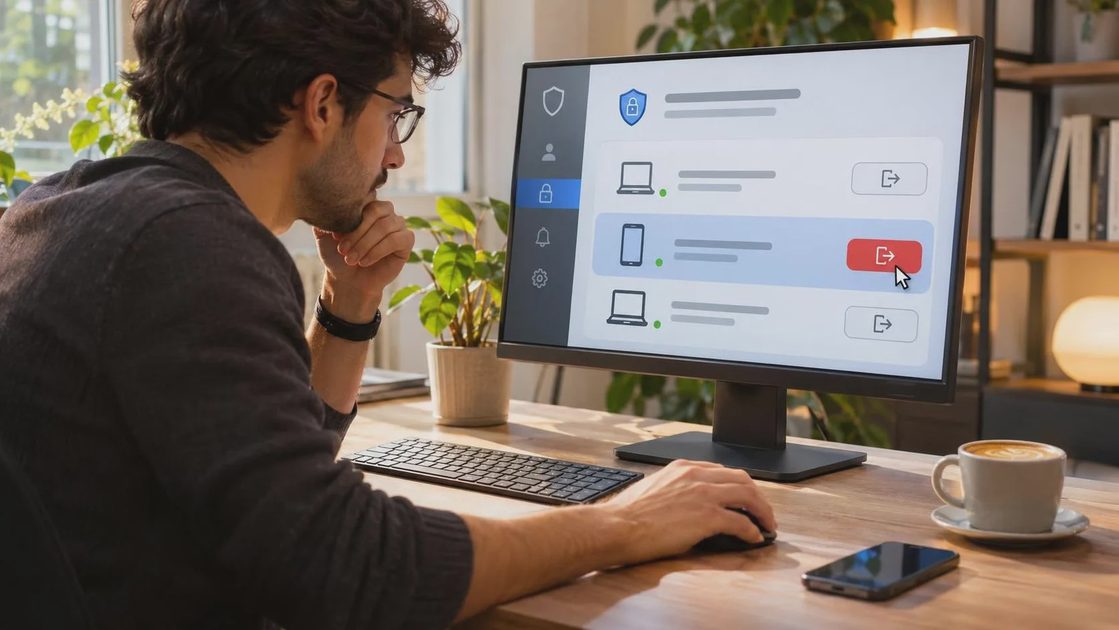
Step 4: Check Your Active Sessions
Sometimes, a hacker doesn't need to steal your password. If they compromise your device, or if you accidentally leave yourself logged in on a public computer, they can bypass the login screen entirely.
Your email provider keeps a log of all devices currently logged into your account.
Google: Scroll down to the "Recent security activity" section on your Google Account security page. You can see a list of devices, their locations, and when they last accessed your account. Click "Log out of all devices" if you see anything suspicious.
Microsoft: Go to "My Sign-ins" in your Microsoft account security dashboard to review recent activity.
Step 5: The Power of a Password Manager
I have said this before in other guides, but it bears repeating: stop trying to memorize your passwords.
Use a password manager. It will generate a long, random password for your email that even a supercomputer couldn't guess. More importantly, it will autofill that password only on the legitimate login page. If a hacker sends you a phishing email that looks like your email login page, the password manager will not autofill the password. This instantly alerts you that the page is a fake.
The Ultimate Check: Have I Been Pwned?
Have you ever wondered if your email address was exposed in a data breach? Visit the website Have I Been Pwned (a trusted, free resource). Enter your email address, and the site will tell you if it has been compromised in a known data breach. If it has, change your password immediately and enable MFA.
Building a Resilient Digital Life
Securing your email isn't a one-time chore; it's an ongoing habit. Set a reminder on your calendar every six months to audit your recovery settings, check your forwarding rules, and update your passwords.
By locking down this central hub, you aren't just protecting your inbox. You are protecting your bank accounts, your social media, and your entire digital identity.
For AI tool features, rules and availability, refer to their official sites.
Leave your thoughts here, too.